![Nojumi_Logo_Screen_RGB.png]](https://help.nojumi.com/hs-fs/hubfs/Nojumi_Logo_Screen_RGB.png?width=200&height=70&name=Nojumi_Logo_Screen_RGB.png)
Step 1: Login and Link your Stewart Title Account
Login to Nojumi and link your Stewart NextSteps Account. To do this, navigate to My Profile -> Stewart Title. Click on Sign in with Stewart Title. Here you will be prompted to enter the credentials for your Stewart Title account.
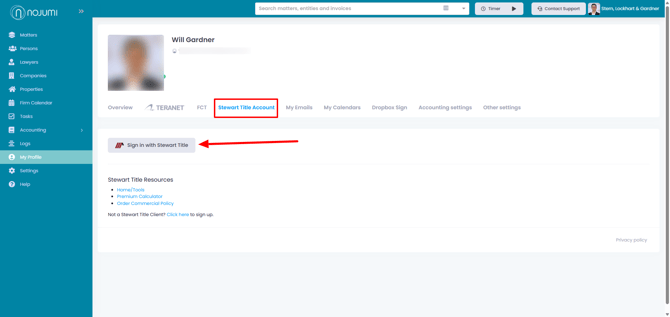
The information entered here should match the information associated with your Stewart Title Next Steps account.
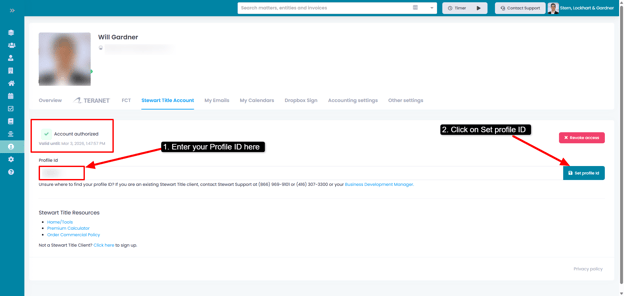
Upon entering all required information, click on the Login button at the bottom right. If you have entered the correct credentials, you will see the following screen. Enter your Profile ID and click on Set profile ID. If you don't know your Profile ID, you should contact Stewart Title at 1(866) 969-9101 or (416) 307-3300 to obtain it over the phone.
Step 2: Browse the Matter and navigate to the Title Insurance tab
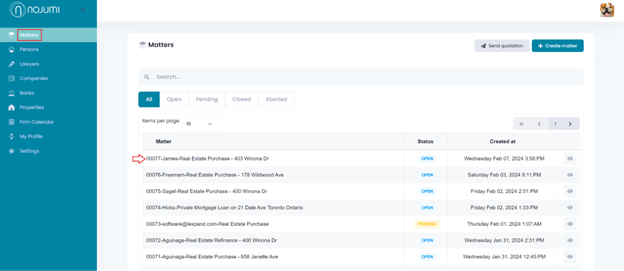
Open the matter for which you wish to order title insurance and navigate to the Title Insurance page.
Step 3: Order Title Insurance
Within the Title Insurance page of the matter, under the Steart Title Insruance tab, click on the NEW ORDER button.
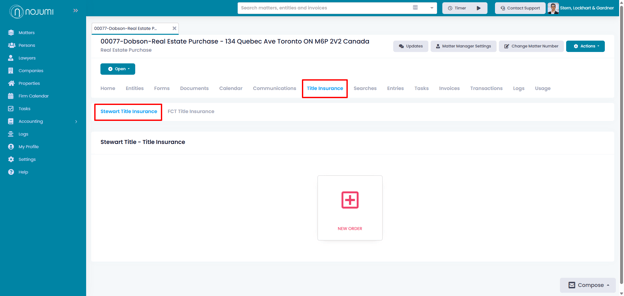
Upon clicking this button, you will be prompted with a screen stating the form is being opened and request is being validated.

Step 4: Validate the required data for the title insurance order
Before you are able to order a new deal for title insurance, you must provide the required information about the matter and the parties involved.
Usually, this information would already be entered by you if you have opened the Real Estate closing forms and generated documents prior to ordering title insurance
If not, then that’s OK because the Nojumi has a validation and troubleshooting step (prior to ordering title insurance) to verify if you have entered all the required information.
Step 5: Preview Order and Troubleshoot
Before ordering title insurance, an order preview will be displayed. This will look like the following:
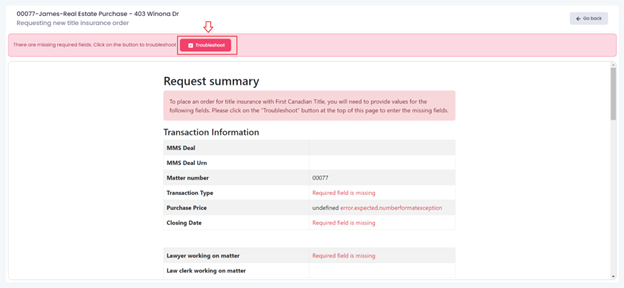
This will show a summary of all the information currently entered for the file. Any missing information is highlighted in red. All information required to order title insurance comes from the Real Estate closing forms.
In the Order Preview, there is a Troubleshoot button. When the user clicks this button, the user will be prompted with a form to enter all the required information to order title insurance.
Upon clicking on the Troubleshoot button, the form will be opened. In this view, the form will display all required input fields highlighted in red. Entering this information will provide all the required information to order title insurance. This information includes fields like closing date, purchase price, acting lawyer, etc.
Note: in the form, one of the required fields is the selection of the acting lawyer in the matter. This is usually a user assigned the role of Lawyer within the firm. This user MUST have logged in to the portal and linked their Stewart Title account. This is because it is the lawyer who will be displayed in the deal in Stewart Title once the order is created.
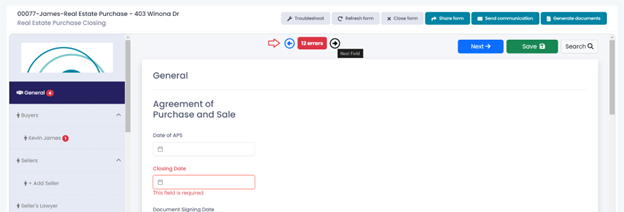
At the top, there is a next/previous button that will navigate the user to the previous/next required field in the form. Once all required fields are entered, the red highlights will disappear. The user can click on Save and close the form.
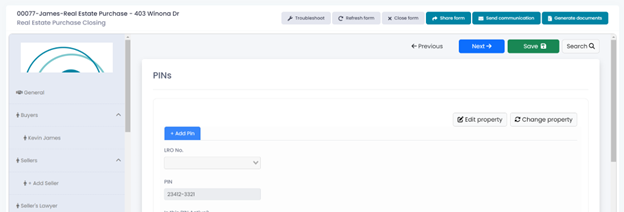
Step 6: Create the Title Insurance Order
The user can now navigate back to the Title Insurance page within the matter and click on the NEW ORDER button.
If any required information is still missing, this will be shown in red, and the user can click on Troubleshoot again to provide the information. In the example below, vendor solicitor information was not provided in the form, thus, these required fields are shown in red.
If all information has been entered, then the user will see the following:
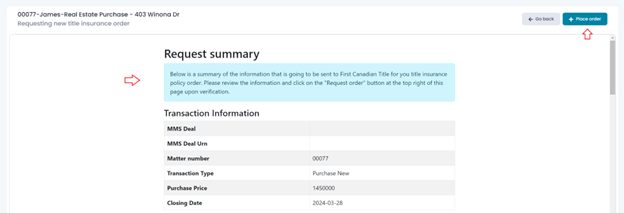
In this view, the user may review the information once more and click on the Place order button at the top right to create a new title insurance order in Stewart Title.
If all required information has been entered, you will see the Stewart Title order preview. The user can interact with this and proceed to enter all other required information in this preview. This includes providing extra documents and submitting order for review. This is the Stewart Title order preview.
Step 7: Preview the Stewart Title Order
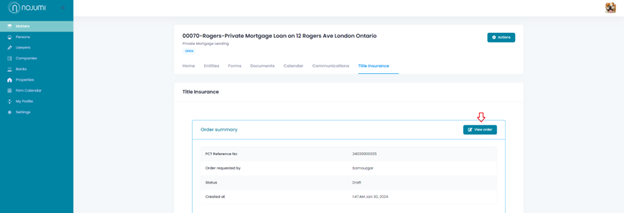
After the order has been created, when navigating to the Title Insurance page of the matter, the user will see the order summary:
Once an order has been submitted and is complete, the Title Insurance page of the matter will show the following:
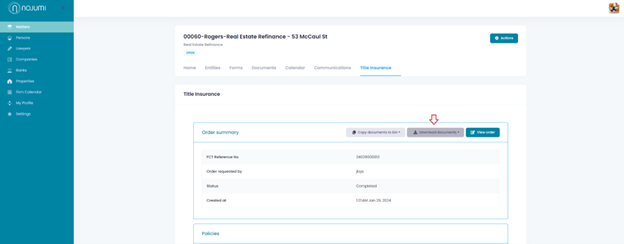
This is the Stewart Title deal status and lists the policies, status of the order, as well as the cost associated with the order.
The user can also download the policy documents via the Download documents button.