![Nojumi_Logo_Screen_RGB.png]](https://help.nojumi.com/hs-fs/hubfs/Nojumi_Logo_Screen_RGB.png?width=200&height=70&name=Nojumi_Logo_Screen_RGB.png)
How to add a Matter Tickler Date
- Open the matter homepage and click the calendar tab
- Click add a date and toggle on “Is Tickler Date”
- Click save
It is important to note that Matter Tickler Dates will only be created if you are a matter manager.
How to view your Matter Tickler Dates
Once you have added a matter tickler date you can view them from the matters page.
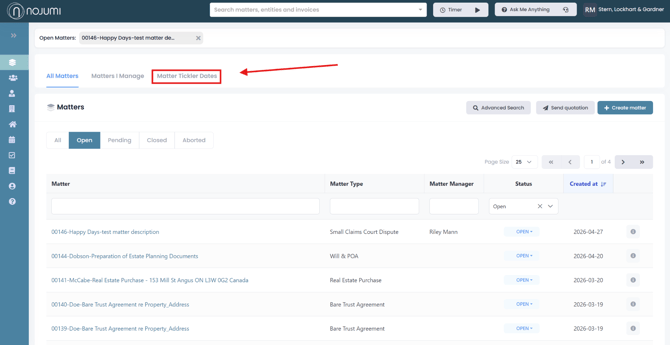
- Open the sidebar and select the Matters tab, then click Matter Ticker Dates
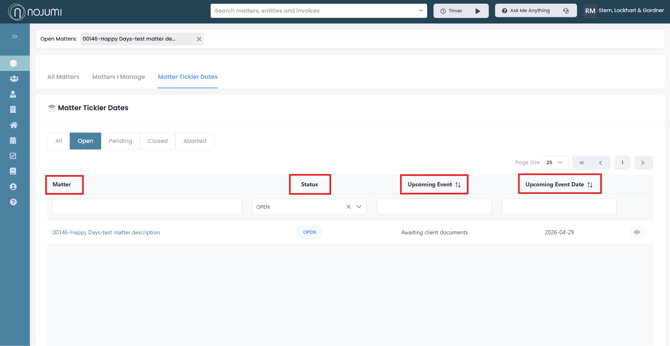
- Here, you’ll see a list of all your matter tickler dates, including details such as the matter, status, upcoming event, and event date. You can also click on any tickler date to open the related matter.
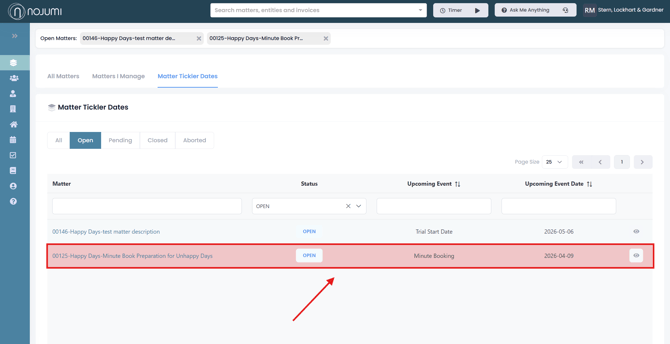
- If a tickler date appears in red, it means it is past due and should be your top priority.