![Nojumi_Logo_Screen_RGB.png]](https://help.nojumi.com/hs-fs/hubfs/Nojumi_Logo_Screen_RGB.png?width=200&height=70&name=Nojumi_Logo_Screen_RGB.png)
Layout of the Matching Page
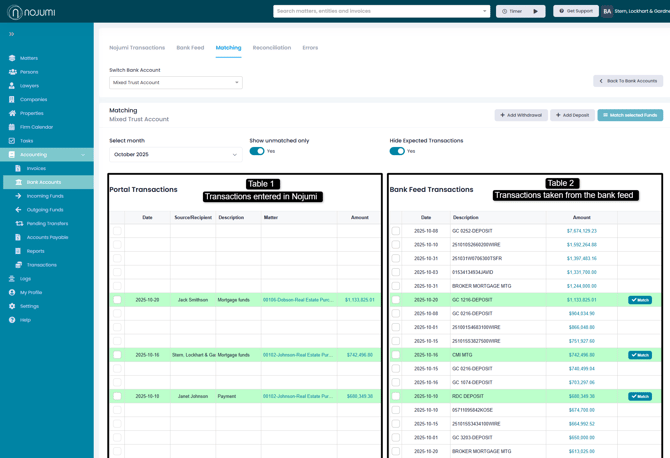
The matching page contains two tables shown side by side. The table to the left contains all transactions added to Nojumi by the users of the law firm as completed transactions. The table to the right contains the bank feed transactions.
The transactions are sorted by amount from largest to smallest on both tables.
Matching Process
As part of the matching process, you are supposed to match the transactions on the left table with transactions on the right table. The matched transactions will be considered reconciled.
Perfect Matches
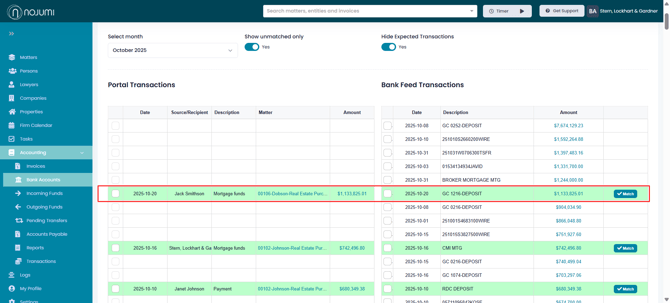
If two transactions have the same date and the same amount, they will appear next to one another will be shown in green. Perfect matches on the Matching Page are shown in green and have a Match button to their right. Transactions appearing in green are the ones that have the same date and amount in Nojumi and on the Bank Feed. When you click on Match, they become reconciled and are removed from this page.
Same Amount but Different Dates
When the transactions have the same amount but different dates, the one with the prior date will appear first and the other will appear in the subsequent row.
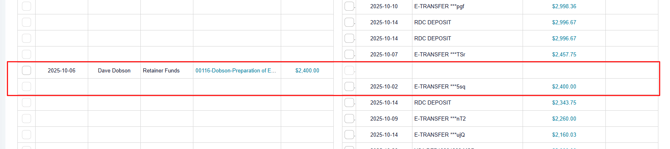
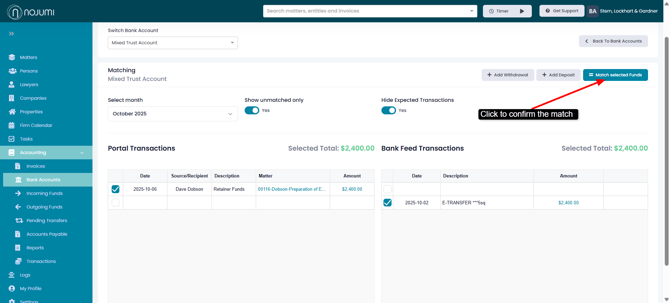
To match these transactions, select one of them, the other table will be filtered to only show transactions that are equal to or smaller than the selected transaction. Select the other transaction, and click on Match Selected Funds button.
One to Many Matches
From time to time you may wish to match a single transaction with multiple transactions that add up to it. In these cases, select the single transaction first. The other table will then be filtered to only show amounts that are equal to or smaller than the selected amount. Select the other amounts amounts to get to the match and click on the Match selected funds button at the top right.