![Nojumi_Logo_Screen_RGB.png]](https://help.nojumi.com/hs-fs/hubfs/Nojumi_Logo_Screen_RGB.png?width=200&height=70&name=Nojumi_Logo_Screen_RGB.png)
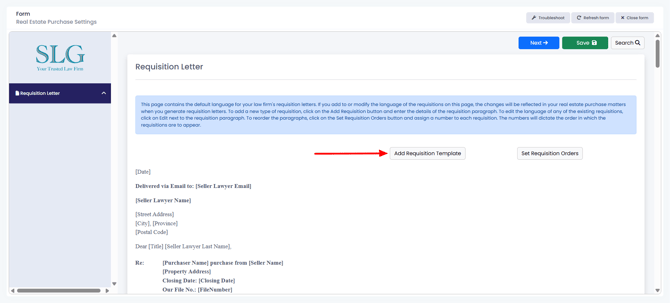
You can customize your requisition letters on the Real Estate Purchase Settings Form. On the Requisition Letter tab of the Real Estate Purchase Settings Form you can find all of your firm's requisition templates.
Adding a Requisition Template
If you want to add a new requisition template,
- On the Real Estate Purchase Settings Form, click on the Add Requisition Template button.
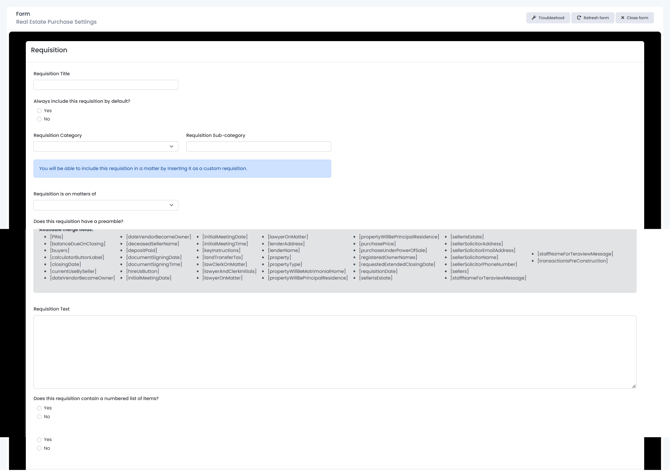
- On the modal that appears
- Enter the Requisition Title
- Select "Yes" under Always include this requisition by default, if the requisition is to be a Default Requisition
- Select a Requisition Category or enter a new category
- Enter a Requisition Subcategory. This field is optional and should be used if you have more than one requisition with the same category in which case you should use the subcategory to distinguish them from one another
- Select whether the requisition is a matter of Contract, Conveyancing or Title
- Select whether the requisition has a preamble, and if so enter the text of the preamble. You can use the available merge fields to customize the preamble. The preamble is the text that will appear immediately before the words "REQUIRED:".
- Enter the requisition text. The requisition text is the text that appears immediately after "REQUIRED:". You can use the available merge fields to customize the preamble.
- If the requisition has a numbered list, indicate so and enter every line of the numbered list in the table that appears.
Editing a Requisition Template
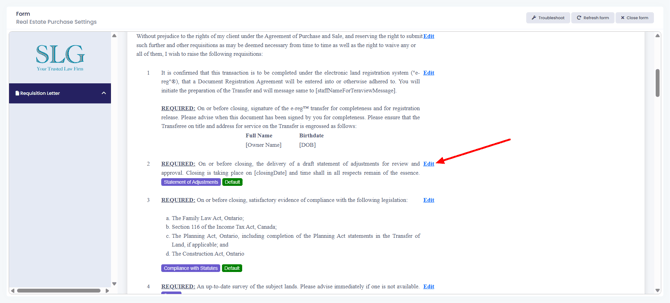
To edit a requisition template, click on the Edit button next to that requisition and make the required changes on the modal that appears.
Deleting a Requisition Template
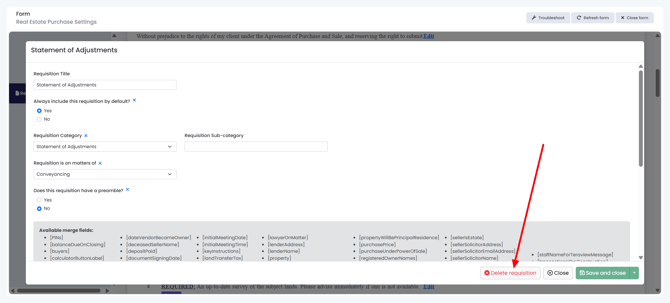
To delete a requisition template, click on the Edit button next to that requisition and on the modal that appears, click on the Delete requisition button and confirm the deletion.
Default Requisitions
Default requisitions are the requisitions that will be included by default in all real estate purchase matters. On the Requisition Letter tab of the Real Estate Purchase Settings Form, default requisitions are identified by a green label that reads "Default"
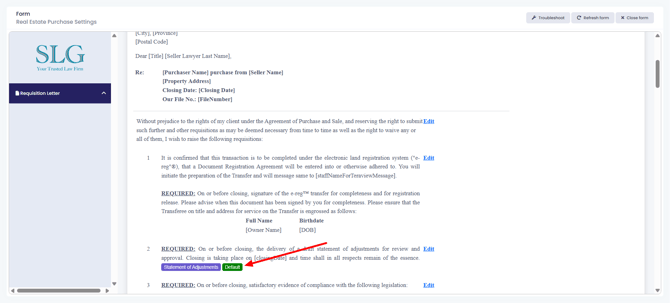
If you want a requisition to appear in all of your requisition letters, you should make that requisition letter a default requisition. To do this, on the Requisition Letter tab of the Real Estate Purchase Settings Form, click on the Edit icon next to the requisition and on the modal that appears, answer the question Always include this requisition by default with a yes.
Requisition Categories and Subcategories
Every requisition template on the Real Estate Purchase Settings form must have a requisition category. Subcategories are optional and should be added when there are more than one requisition template with the same category. Requisition subcategories must be unique and therefore, if you have, for example, 3 requisition templates with the same category, they should each have a unique subcategory.
Requisition categories and subcategories serve a number of purposes:
- From within a matter, if you click on Add Requisition on the Requisition Letter tab of the Purchase Closing Form, you will be able select and insert a requisition template by selecting the category and subcategory, if applicable.
- Assigning a Special Category to a requisition template results in that requisition showing in a matter when the conditions of that special category are met within the matter.
- When previewing the requisition letter on the Purchase Closing Form, a category label is displayed next to the requisition to make it easier for you to quickly tell what the requisition is about.
When you add a requisition template, you can either add your own category or you can select one of the pre-defined categories offered by Nojumi.
Below is a list of the requisition categories offered by Nojumi:
- Assumption of Tenants
- Closing Documents
- Commercial
- Condo
- Discharge of Mortgage
- Discharge of Instrument
- Chattels and Fixtures
- Estate Sale
- Inspection
- Keys
- LTCQ
- No Encroachment
- No HST
- No Tax Arrears
- No Work Orders
- Oil Tank
- Power of Sale
- Registered Owner not same as Seller
- Rental Items
- Statement of Adjustments
- Survey
- Teraview
- Ureaformaldehyde
- Utilities
- Water Well
- Writs
Special Categories
Some of the categoreis among the pre-defined categories offered by Nojumi are special categories in that if they are assigned to a requisition template, that requisition template will be shown in a matter's requisition letter, when certain conditions are met on that matter.
Below are the special categories:
- Condo - All requisitions that are assigned the category "Condo" will show in a matter's requisition letter, if the property in that matter is a condominium.
- Survey - All requisitions that are assigned the category "Survey" will show in a matter's requisition letter, if on the Purchase Closing Form, it is stated that the Agreement of Purchase and Sale requires that a survey be delivered.
- Assumption of Tenants - All requisitions that are assigned the category "Assumption of Tenants" will show in a matter's requisition letter, if on the Purchase Closing Form, the property is marked as tenanted and the tenants are being assumed by the buyer.
- Estate Sale - All requisitions that are assigned the category "Estate Sale" will show in a matter's requisition letter, if on the Purchase Closing Form, the seller is stated to be the estate of a deceased person. In configuring the texts of the requisitions in this category, you can use the [deceasedSellerName] merge field, which will be replaced with the name of the deceased entered on the Purchase Closing Form.
- Power of Sale - All requisitions that are assigned the category "Power of Sale" will show in a matter's requisition letter, if on the Purchase Closing Form, the seller is stated to be a mortgagee selling under power of sale.
- No HST - All requisitions that are assigned the category "No HST" will show in a matter's requisition letter, if on the Purchase Closing Form, the transaction is stated not to be subject to HST.
- Oil Tank - All requisitions that are assigned the category "Oil Tank" will show in a matter's requisition letter, if on the Purchase Closing Form, the property is stated to have an oil tank.
- Watter Well - All requisitions that are assigned the category "Water Well" will show in a matter's requisition letter, if on the Purchase Closing Form, the property is stated to have a water well.
-
Registered Owner not same as Seller - All requisitions that are assigned the category "Registered Owner not same as Seller" will show in a matter's requisition letter, if on the Purchase Closing Form, the name of the registered owner is stated to be different than the seller's name on the agreement of purchase and sale. In configuring the texts of the requisitions in this category, you can use the [registeredOwnerNames] and [sellers] merge fields, which will be replaced with the registered owner names and seller names on the APS on the Purchase Closing Form.
-
LTCQ - All requisitions that are assigned the category "LTCQ" will show in a matter's requisition letter, if on Title Search tab of the Purchase Closing Form, title stated to be Land Titles Conversion Qualified (LTCQ).