![Nojumi_Logo_Screen_RGB.png]](https://help.nojumi.com/hs-fs/hubfs/Nojumi_Logo_Screen_RGB.png?width=200&height=70&name=Nojumi_Logo_Screen_RGB.png)
To create your own custom documente templates
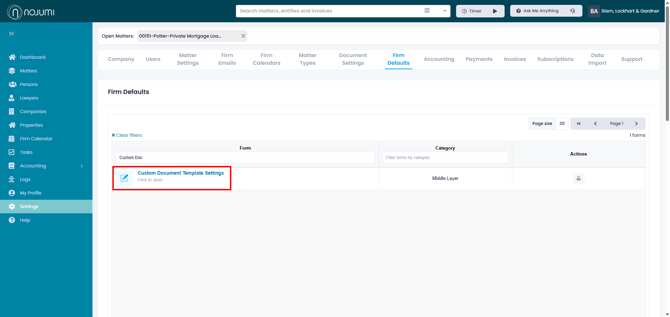
- Click on Settings on the sidebar, select Firm Defaults, and click on Custom Document Template Settings
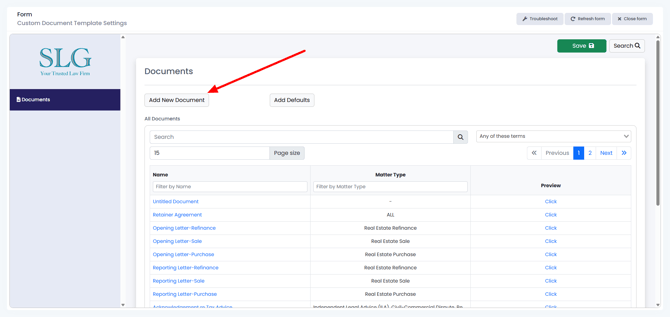
- Click on Add New Document
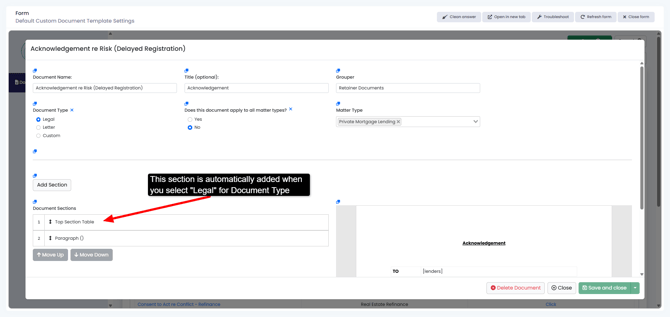
- Add the following information on
- Document Name - This is the name under which the document will appear under the Document Generation page.
- Title - This is the titel that will appear at the top of the document. This field is optional.
- Grouper - This is the category under which the document will appear under the Document Generation page.
- Document Type
- Legal - Select this option if you want an acknowledgement style document with TO and RE lines at the top
- Letter - Select this option if you want the document to appear on your letterhead.
- Custom - Select this is if you want to add a custom document
- If you selected Legal as the Document Type, a section will be added named "Top Section Table". Click on it to customize the top section of the document.
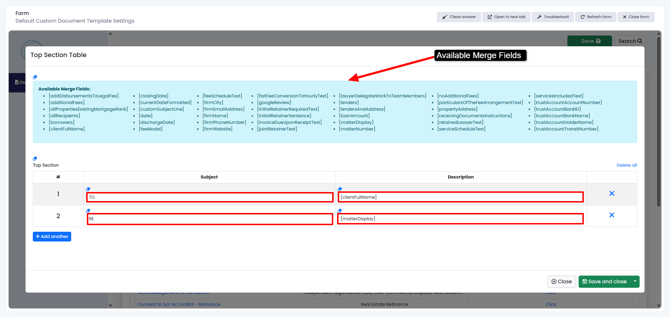
- Complete the Top Section Table. You can insert merge fields in any of the fields from the list of merge fields shown in blue
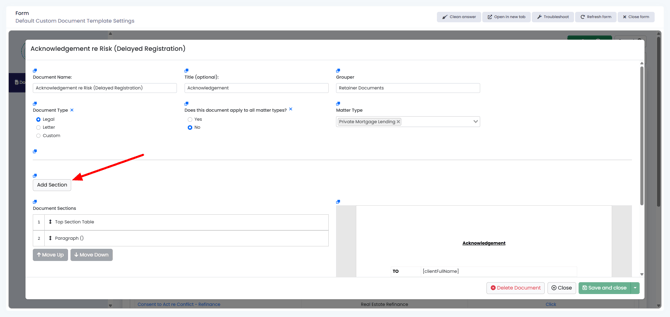
- To add a new section to the document click on Add Section
- Select the Section Type
- Paragraph - Use this option to add a paragraph to the document.
- Select alignment (justify, left, right, center)
- Select paragraph style (Bold, Italic, Underline)
- Allow square bracketed text - This is by default set to No. Select Yes if you don't want to use merge fields and if you wish to include square brackets in the text. If you select no, square brackets will denote merge fields.
- Under Section Content add the text of the paragraph. You can insert any of the available merge fields.
- Specify if the paragraph is subjet to a conditional hide, and if so select the condition that should result in hiding the paragraph.
- List - Use this option to add a list. You can insert any of the available merge fields.
- Table - Use this option to add a table. You can insert any of the available merge fields.
- Horizontal Line - Use this to insert a separating horizontal line.
- Dated At Line - Use this to insert a dated at line.
- Signature Block - Use this to insert a signature block
- Paragraph - Use this option to add a paragraph to the document.