![Nojumi_Logo_Screen_RGB.png]](https://help.nojumi.com/hs-fs/hubfs/Nojumi_Logo_Screen_RGB.png?width=200&height=70&name=Nojumi_Logo_Screen_RGB.png)
To configure permissions for a user, an admin user must take the following steps:
- Click on Settings on the sidebar
- Click on Users
- Click on the Lock icon next to the user of interest
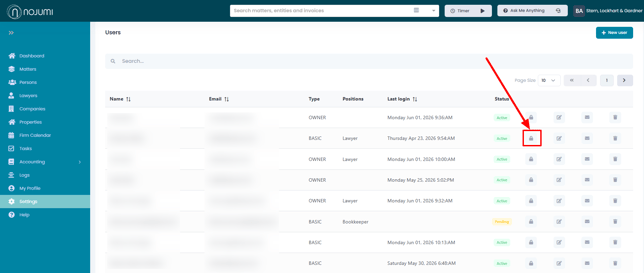
- On the page that appears, configure the following permissions for the user
- Matter Access - Specify which matters of the firm the user should have access to. You have the following options:
- Provide access to all matters of the firm
- Only allow access to
- Specific matters
- Specific practice areas
- Specific matter types
- Do not allow access to
- Specific matters
- Specific practice areas
- Specific matter types
- Accounting Access
- Bank Accounts - Specify which bank accounts the user should have access to
- Bank Feed - Specify if the user should see the bank feed for the bank accounts they have access to
- Matter Transactions - Specify if the user should see the Matter Transactions page
- Invoices Page - Specify if the user should see the All Invoices page.
- Incoming Fudnds Page - Specify if the user should see the Incoming Funds page
- Outgoing Funds Page - Specify if the user should see the Outgoing Funds page
- Bank Transfers Page - Specify if the user should see the Bank Transfers page
- Matter Transfers Page - Specify if the user should see the Matter Transfers page
- Accounts Payable Page - Specify if the user should see the Accounts Payable page
- Accounting Reports Page - Specify if the user should see the Accounting Reports page
- General Ledger Page - Specify if the user should see the General Ledger page
- User Performance Access
- User Performance Page - Specify if the user should see the User Performance Page
- Matter Logs Page - Specificy if the user should see the Matter Logs page
- Firm Logs Page - Specify if the user should see the Firm Logs page
- Matter Access - Specify which matters of the firm the user should have access to. You have the following options:
Troubleshooting Access Issues
If a user in your firm cannot access a particular part of the application, it is due to their permission settings. You will have to ask an admin user of your firm to configure the correct permissions for them as set out in this page.