![Nojumi_Logo_Screen_RGB.png]](https://help.nojumi.com/hs-fs/hubfs/Nojumi_Logo_Screen_RGB.png?width=200&height=70&name=Nojumi_Logo_Screen_RGB.png)
There are two ways to revise an invoice:
- Revise the invoice before the invoice is issued - in this method,
- The client won't see the discount,
- You will be able to add internal notes that are not visible on the dockets (time entries), which won't be visible to the client. For example, if you are marking down a time entry, you would be able to leave a note for that timekeeper to let them know why you are marking it down.
- You can also adjust the description of time entries and disbursements
- Apply a discount after the invoice is issued - in this method,
- The client will see the discount
- You will be able to apportion the discount among the timekeepers. When a discount is applied, it is no longer reflected in the User Performance page as time that is billed and collected, and as such, it lowers the user's performance. You can divide the discount among the timekeepers proportionately, or you can allocate a larger share to one or more timekeepers compared to the rest.
- You won't be able to adjust the specific time entries or their descriptions. The invoice will show all time entries as entered and will only show a discount line at the bottom.
Revising an invoice before it is issued
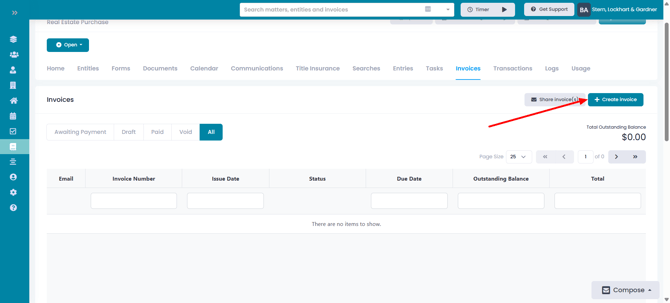
- On the Matter Invoices page, click on Create Invoice. This will create a draft invoice.
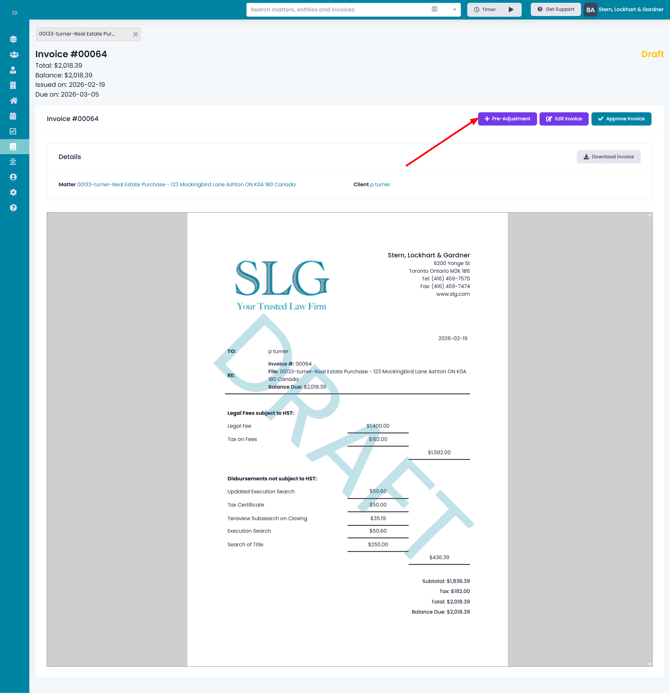
- On the draft invoice page, click on Pre-Adjustment
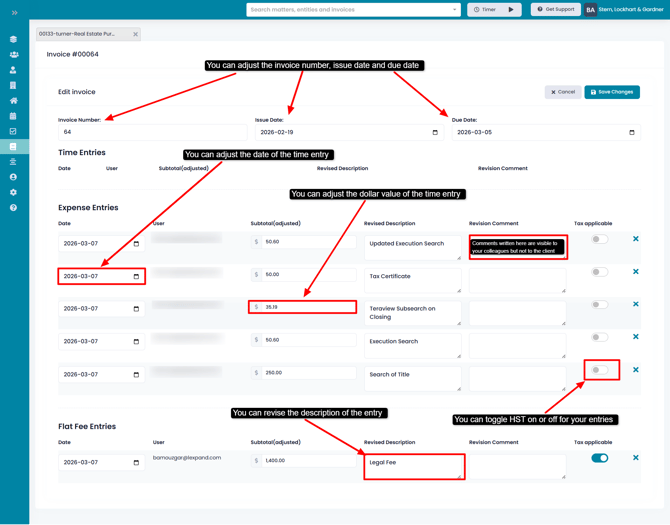
- On the Pre-Adjustment page, you can adjust the following
- Invoice number
- Issue date
- Due date
- Date, amount, and description of the entries. The client will see the revised date, amounts, and descriptions.
- Leave revision comments for each of the entries. The revision comments will only be visible to you and your colleagues. The client will not see them. The revision comments are a great tool to let junior staff know how you are revising their dockets, so they can learn to improve.
Applying a Discount after Invoice Issued
To apply a discount to an invoice
- Browse the invoice's home page
- Click on Adjustments and select Add Adjustment
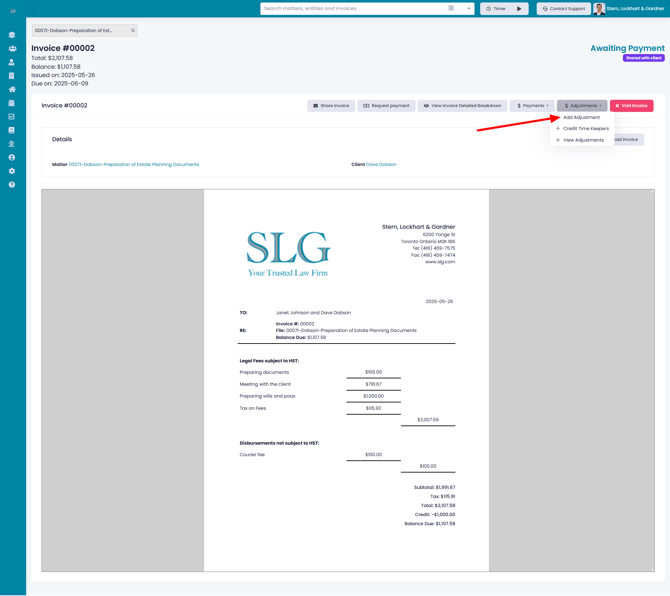
- Select whether you wish to write off the entire balance on the invoice or a custom amount, enter a credit note (this will be shown on the invoice), make adjustments to the amounts for Time, Flat Fee, and Disbursements, and click on Save Adjustment
-png.png?width=670&height=365&name=00071-Dobson-Preparation%20of%20Estate%20Planning%20Documents%20(1)-png.png)