![Nojumi_Logo_Screen_RGB.png]](https://help.nojumi.com/hs-fs/hubfs/Nojumi_Logo_Screen_RGB.png?width=200&height=70&name=Nojumi_Logo_Screen_RGB.png)
What is the Legal Fee Configuration form?
Many lawyers have consistent billing methods for each of the matter types in their practice. Nojumi allows you to configure your billing defaults for each matter type on the Legal Fees Configuration form.
What can the Legal Fee Configuration do?
When you configure default legal fees for a matter type, you achieve the following:
- On the matter entries page, when you click on the Add Default Entries button, the configured legal fees and disburemsents will be automatically added.
- Using the send quote feature, you will be able to send a quotation to a prospective client.
- The configured legal fees including the description of services included and excluded will appear in the retainer agreement.
- You will be able to add any of the additional legal fees configured for the matter type, by clicking on the Add Flat Fee button and selecting the additional fee.
How to access the Legal Fee Configuration form
To access the Legal Fee Configuration form- Go to the Firm Defaults Page
- Click on the Legal Fees Configuration form
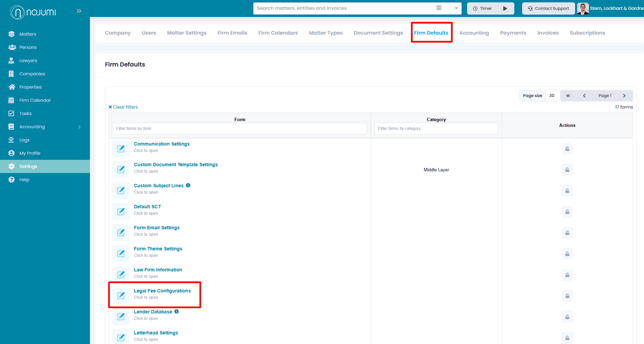
How to Configure Legal Fees on the Legal Fee Configuration Form
- On the Legal Fees Configuration form, either select an existing legal fee configuration to modify or click on Add another
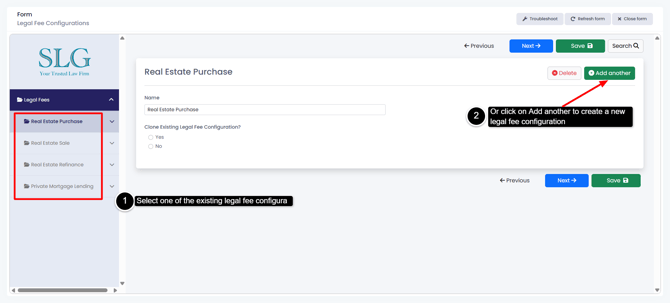
- If you add a new legal fee configuration, enter a name for it. This name is how the configuration will be shown from within the matter at the time of preparing the retainer agreement or the invoice.
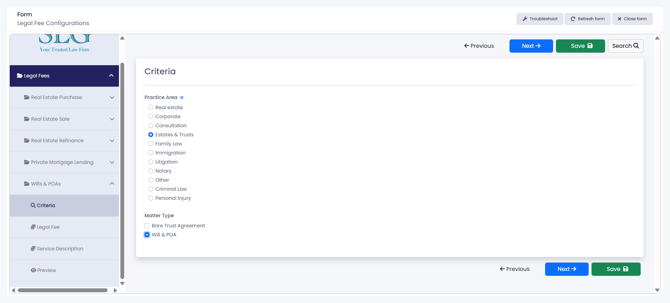
- On the Criteria tab, select the practice area and the matter type. If you select real estate as the practice area, you will be able to define additional criteria, including property type and closing type.
- Under the Legal Fees tab, add the information for the default legal fees
- Under Service Descriptions, add the services included and not included as well as the applicable additional fees.